
Before installing a payment terminal in a charging station, the station owner should contact the manufacturer or an authorized service provider to confirm the required installation and configuration steps needed to ensure proper terminal operation. It is also important to verify that the chosen payment terminal model is supported by the charger manufacturer.
This preparation phase is essential for the correct installation and commissioning of the terminal, and it helps ensure compliance with the device’s warranty conditions as well as its CE certification.
How to configure a charge point for supporting a SIO payment terminal
1. Adjust name length if required.
Charger Name* on EVC-net is limited to 31 characters.
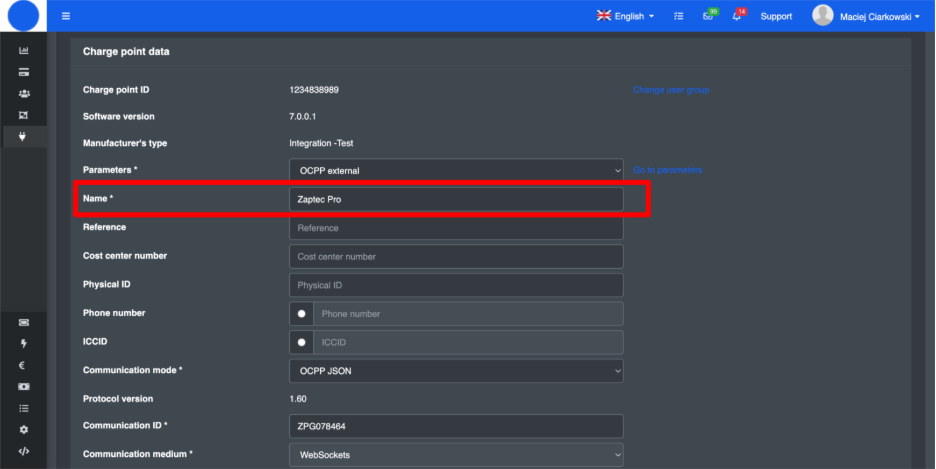
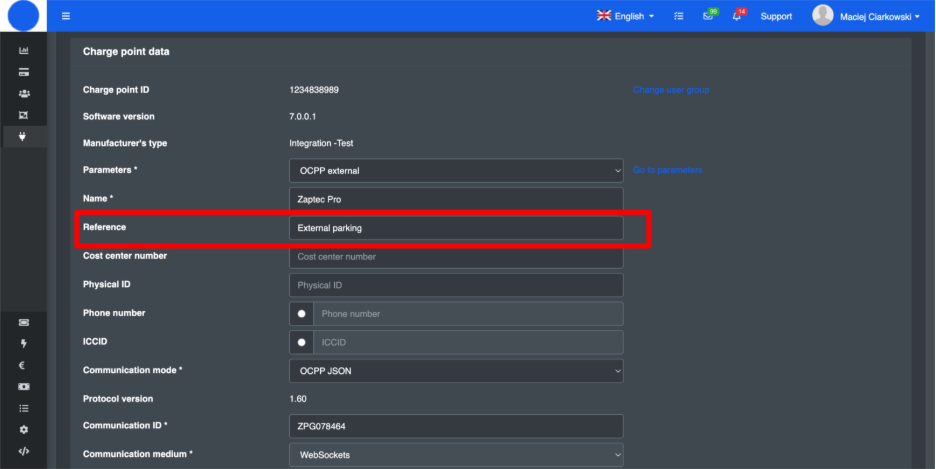
2. Modify charger name at the terminal display.
To set up user friendly charger name that will be displayed at terminal display please use Reference field in the charger configuration. Please do not use national characters and special characters (!@#$% etc.) in this field.
3. Enable Remote Start Requests at EVC-net:
- Log into EVC-net.
- Click on Charge points > Search
- Search for charge point
- Open the charge point
- Scroll to “Charge point data” section
- Click on Go to parameters
- Go to section General – OCPP capabilities
- Tick all three options
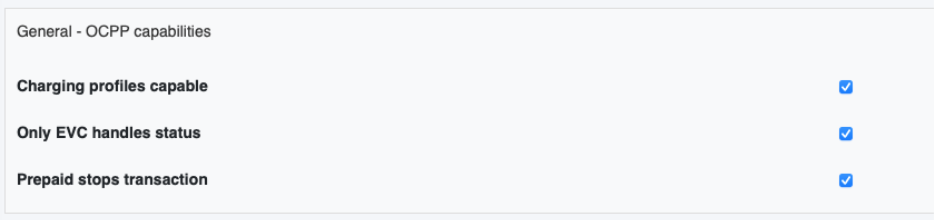
- In OCPP – Configuration section, tick “AuthorizeRemoteTxRequests
- If no parameters show in this section, click “Get parameters” first to retrieve them from the charge point. After this, the option should show.
- Tick “Select” next to all the fields you have adjusted
- Click on ‘Save’
3. Set Transactions and Car communication timeouts
- Log in to your EVC-net
- Click on Charge points > Search
- Search for charge point
- Open the charge point
- Go to charger parameters at chargepoint Data.
- Find and adjust following parameters (if present) at charger configuration:
AuthorizationOngoingPerformanceTimeout 90
ConnectionTimeOut 90
Enter correct value of the parameter, press “Select” tab on the right side of adjusted value, go to the bottom of the screen, press “Save and send selected parameters” tab.