
Two-factor authentication (2FA) adds a second verification step to the driver portal login. After entering a username and password, the customer receives a 6-digit code to their registered email address. Entering the correct code completes login.
This guide is for partners and their customer-facing teams. It covers what 2FA does, how it is enabled, and how it behaves for private drivers, company administrators, and employees.
Key points:
- Fully live as of end of July 2026
- Customers opt in themselves; system users and the API can also enable it
- This is not SSO — it is a step toward broader authentication methods

What 2FA is and what it’s not
When enabled, a 6-digit code is sent to the customer’s registered email address after each login. The customer must enter the correct code to proceed. A new code is required at every subsequent login.
2FA is not:
- A passwordless login or magic link
- An authenticator app method (e.g. Google Authenticator) or passkeys
- Single Sign-On (SSO)

Why it matters?
Customer accounts hold active payment methods and transaction history. A compromised login can lead to incorrect billing, disputed sessions, and reconciliation work. 2FA confirms the person logging in controls the registered email address, blocking unauthorised access before a session starts or a cost is incurred.
2FA also allows partners to meet internal and external security requirements while a broader authentication roadmap is delivered.
Scope & availability
2FA is available on the EVC-net web driver portal and the EVC-net mobile apps. It is released under a feature flag. When enabled, an additional security setting appears on the customer’s Profile page. The checkbox is unselected by default; once enabled, the customer is prompted for a code at their next login.
Rollout to login API endpoints is not in scope. If this changes, it will be announced separately so partners have time to prepare.
How to enable Email 2FA for a customer
Once a provider has been enabled (see feature flag), there are three ways the OTP setting can be turned on for an individual customer.
How to enable email 2FA as a system user in EVC-net (admin)
A system user viewing a customer in EVC-net can enable or disable the setting from the customer’s Login data section.
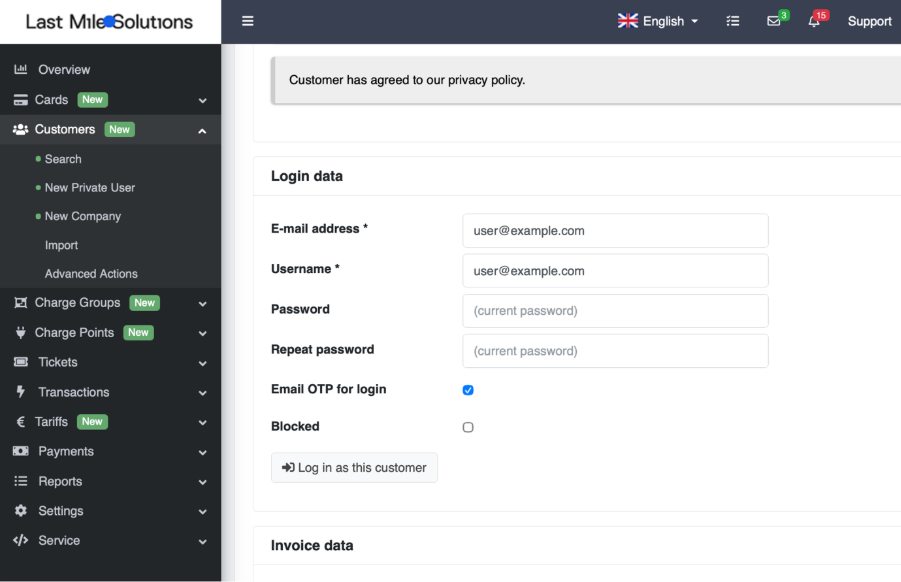
EVC-net admin — the “Email OTP for login” checkbox in the customer’s Login data section.
How to enable email 2FA as a customer in the driver portal
When the provider is enabled, customers manage the setting themselves on the Profile page of the web driver portal:
- Log in to the driver portal and go to Profile.
- Scroll to the Two-step verification section.
- Tick “Email OTP for login” and confirm with the current password, then Save.

Customer Profile page — the two-step verification setting (private driver).
How to enable email 2FA via the API
The setting can also be enabled or disabled programmatically through the Platform API Customers endpoint, allowing partners to manage it at scale across their customer base.
The 2FA preference is exposed as a boolean field, otpEmailEnabled, on the customer resource. Include it when creating or updating a customer through the customers Platform API (PUT). The example request object below shows the body only; endpoint, headers and authentication are handled by your integration team. Set otpEmailEnabled to false to disable 2FA.
Example customer object (otpEmailEnabled included):
{
  "firstName": "John",
  "lastName": "Doe",
  "email": "customer@example.com",
  "username": "customer@example.com",
  "street": "Example Street",
  "streetNumber": "124",
  "streetNumberExt": "B",
  "zipCode": "1000AA",
  "city": "Example City",
  "country": "/api/platform/countries/FR",
  "preferredLanguage": "/api/platform/languages/en",
  "invoiceName": "Example Company B.V.",
  "invoiceStreet": "Example Avenue",
  "invoiceStreetNumber": "1",
  "invoiceStreetNumberExt": "",
  "invoiceZipCode": "1000AA",
  "invoiceCity": "Example City",
  "invoiceCountry": "/api/platform/countries/NL",
  "invoiceEmail": "billing@example.com",
  "phone": "+31100000000",
  "mobile": "+31600000000",
  "billingAccountNumber": "",
  "bic": "",
  "billingAccountName": "Company Account",
  "otpEmailEnabled": true
}
Customer types & cascade behaviour
Three customer types interact with the 2FA setting differently. The most important rule for partners to understand is the cascade between a company-level control and an employee’s personal setting.
| Customer type | 2FA self-management | Affected by others |
|---|---|---|
| Private driver | Full control | None |
| Company admin | Full control over company-wide enforcement and own login | None |
| Employee | Full control only when company enforcement is OFF | Overridden by company-wide enforcement |
Two-factor authentication is enabled at the provider level by Last Mile Solutions. Once active for your provider account, the 2FA option becomes visible to your customers in the EVC-net driver portal. Private users can enable it for their own account. Company customers can activate it for their organisation, and once enabled it applies to all employee accounts under that company. If needed, 2FA can also be enabled in bulk for all customers within your provider account via the API.
The cascade rule
When deciding whether 2FA is required at an employee’s login, the system evaluates the company setting first and the employee setting second.
| Company enforcement | Employee personal setting | Result at login |
|---|---|---|
| ON | ON | 2FA required |
| ON | OFF | 2FA required (forced by the company) |
| OFF | ON | 2FA required |
| OFF | OFF | No 2FA |
Critical principle: an employee’s personal preference is stored but inactive while the company enforces 2FA. If a company turns enforcement on and later off, employees return to whatever they had personally set — not to a reset default. This is made visible in the employee’s settings so there are no surprises.
Private driver
Private drivers manage their own setting with no external dependencies — the behaviour mirrors a standard consumer 2FA setup. They tick the checkbox, confirm with their current password and save; 2FA applies at the next login and they receive a confirmation email. Unticking and saving disables it. If the password is missing or incorrect, the 2FA change is not committed and the rest of the saved profile data is unaffected.
Company admin
A company admin has a single 2FA “OTP” (One Time Password) checkbox that controls both their own login and 2FA enforcement for every employee in the company. There is no separate personal-only setting — the admin’s checkbox is the company-wide setting. When the admin enables it, 2FA applies to the admin and all employees, and every employee is notified by email; disabling it returns each employee to their own personal setting.
Company customer — enabling two-step verification applies it to the admin and all employees.
EVC-net back-office (system user) — a customer’s Login data with “2FA/ Email OTP for login” enabled.
Employee
Employees can manage their own setting only when the company admin’s setting is OFF. When the admin’s setting is ON, the checkbox is checked and disabled, the password field is hidden, and the employee sees:
“2FA/Email OTP is required by your company. Contact your administrator if you need this changed. Your saved personal preference (off) will apply if your administrator turns the company setting off.”
Because personal preferences persist, an employee who had 2FA on keeps it after the company toggles enforcement on and then off; an employee who never set a preference falls back to off.
The login experience
Once 2FA is enabled, the customer logs in as usual and is then asked for a code that has been sent to their email address.
- After username and password, the portal confirms a code has been sent.
- The 6-digit code arrives by email and is valid for 10 minutes.
- The customer enters the code to complete login. A code can be resent if needed.
If a customer cannot log in
If a customer loses access to their registered email address or otherwise cannot complete the 2FA step, the partner’s support department can help. A system user can open the customer in EVC-net, go to the Login data section, and untick “Email OTP for login” to disable two-step verification for that account (see section 6.1). The customer can then log in with their username and password, and re-enable 2FA themselves once email access is restored.
Note: for company accounts under company-wide enforcement, the partner’s support team cannot lift 2FA for a single employee. Instead, refer the customer to their company administrator, who can switch the company-wide setting off temporarily so the user can log in, then re-enable it afterwards. This is how it works today; based on customer and partner feedback, the flow may be improved in future.
How we ensure the email is delivered
Because the 2FA code only works if it reaches the customer quickly, email delivery is treated as a critical part of the feature rather than an afterthought.
All of our email — including the 2FA code — is delivered through our enterprise email delivery platform. In practice we see messages arriving in customer inboxes within seconds of being sent.
For this time-critical email we took an additional measure: across the major mail clients (Gmail, Hotmail/Outlook.com, Microsoft 365 and others) the 2FA message is configured so that no unsubscribe option is shown. This keeps the code where the customer expects it and avoids the message being treated as marketing mail that a customer could accidentally opt out of.
Frequently asked questions
Communication templates
Do you need to inform your customers about this update? Feel free to use the communication templates below.
End user/driver email
Subject: Keep your charging account secure with two-factor authentication
Body:
Dear [Name],

We want to let you know that two-factor authentication (2FA) is now available on your charging account; an additional layer of security to keep your account and payment details protected.

What does this mean for you?

When 2FA is active on your account, you will be asked to enter a 6-digit code after logging in with your username and password. This code is sent to your registered email address and is valid for one session. It confirms that the person accessing your account is genuinely you.

A few things to know

2FA already works on both the browser-based driver portal and our mobile app. Make sure to update your mobile app when there is an update available. If 2FA has been enabled for your account, you will simply be guided through the extra step the next time you log in.

Questions?

If you have any questions about this change or need any assistance, please do not hesitate to reach out to us at [contact details / support email].

Kind regards,

[Partner name]
Company email
Subject: Two-factor authentication is now available for your organisation
Body:
Dear [Name],

We are reaching out to let you know that two-factor authentication (2FA) is now available for your organisation’s charging accounts on [Platform name].

What is 2FA?

Two-factor authentication adds a second verification step to the login process. After entering a username and password, the user receives a 6-digit code on their registered email address. They enter the code, and access is granted. It is a straightforward and proven way to protect accounts from unauthorised access.

What does this mean for your organisation?

As a company administrator, you can enable 2FA for all employees in your organisation directly from your account settings. Once enabled at company level, 2FA becomes mandatory for all employee accounts — ensuring a consistent level of security across your team. Private users can enable it individually from their own account settings at any time.

What happens when 2FA is enabled?

2FA works on the browser-based driver portal and our mobile apps. Make sure to update your mobile app when there is an update available. If 2FA has been enabled for your account, you will simply be guided through the extra step the next time you log in

No action is required from you right now. If you have any questions, please do not hesitate to get in touch.

Kind regards,
[Partner name]